The Settings Panel provides access to application version information, AI configuration, execution preferences, diagnostic tools, and the user’s account details. This panel is intentionally minimal and focused on essential runtime behavior rather than complex configuration.
4.7.1 Overview
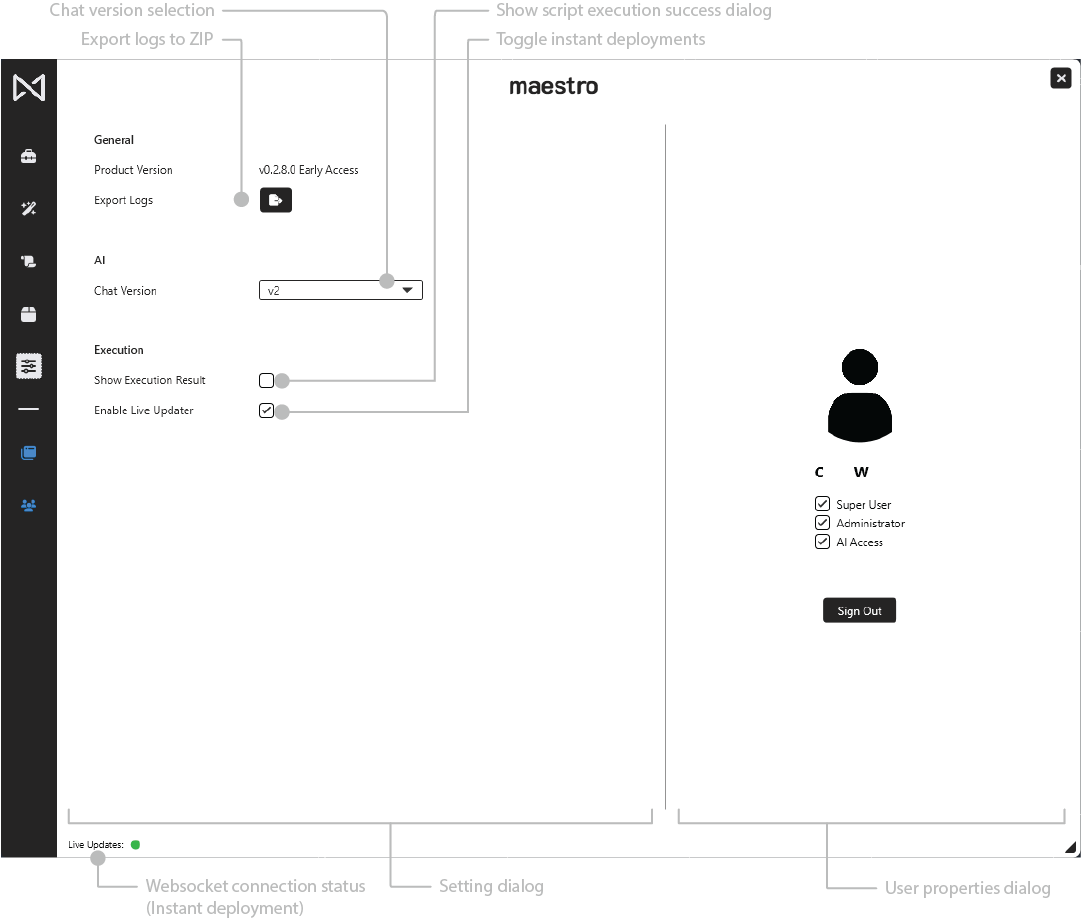
The Settings Panel contains:
- Version and diagnostic controls
- AI model selection
- Execution preferences
- User profile and permissions
- Sign-out functionality
These settings help users understand their environment, export logs for support, and manage basic Maestro behavior.
4.7.2 General
Version Indicator
Displays the currently installed version of Maestro, including build number and Early Access identifiers where applicable.
This field is informational only.
Export Logs
Exports Maestro’s diagnostic logs into a ZIP file.
Users choose the save location on their machine.
Export Logs is typically used when:
- Reporting an issue
- Submitting support requests
- Troubleshooting AI behavior or script errors
No data is sent automatically—logs are saved locally.
4.7.3 AI
Chat Version
The AI model used for generating scripts and explanations.
- Configured using a dropdown (e.g., “v2”)
- Only updates Maestro AI behavior, not script execution
- Some tenants may restrict version access based on role
Changing the chat version is immediate and does not require a restart.
4.7.4 Execution Settings
Show Execution Result
When enabled, Maestro displays a result notification after successfully running a script.
When disabled, scripts run silently unless script logic produces its own output.
Enable Live Updater
Controls whether Maestro applies changes instantly using its WebSocket connection.
- Enabled: Ribbon changes, script edits, and deployments sync immediately
- Disabled: Updates apply only after refresh/restart
Most users keep this enabled for real-time responsiveness.
4.7.5 User Properties (Read-Only)
The right side of the Settings Panel displays user identity and assigned permissions.
User Identity
Shows the user’s initials, account name, and tenant-based access.
Permission Checkboxes
These checkboxes are informational only and cannot be toggled:
- Super User – Indicates Enterprise-level administrative privileges
- Administrator – Indicates elevated tenant permissions
- AI Access – Indicates access to Maestro AI generation tools
These reflect permissions assigned through the Maestro tenant configuration, not through the client interface.
Sign Out
Logs the user out of Maestro and returns to the login screen.