The Script Editor Panel is the primary workspace for writing, editing, and testing Python scripts inside Maestro.
It provides a structured environment for version control, script organization, and active development with full Revit API support.
4.4.1 Overview
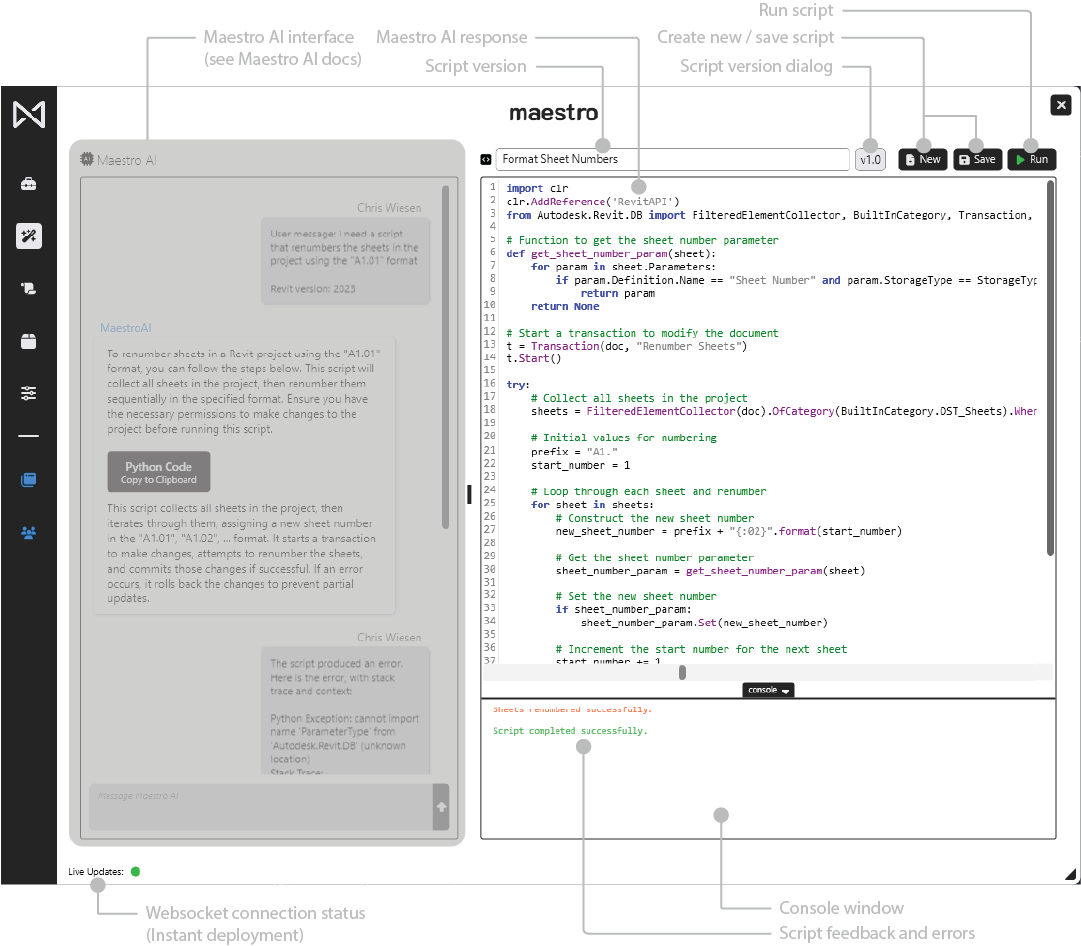
The editor is tightly integrated with Maestro AI, the Script Library, and the Ribbon Manager.
It supports:
- Script editing
- Version control
- Error highlighting
- Script preview and execution
4.4.2 Header Bar
The top of the editor includes the following elements:
Script Name
Displayed in the title bar and editable through the Script Library.
Execution Controls
- Run Script: Executes the script in Revit.
Version Dropdown
Provides full version management:
- Increment Major: e.g., v1.0 → v2.0
- Increment Minor: e.g., v1.0 → v1.1
- Reset Version: Returns to v1.0
- Open Current: Reloads the current HEAD version
- Open Version: Load any previous saved version
The Save button turns blue when there are unsaved changes.
4.4.3 Versioning
Versioning allows users to maintain stable progression of tools.
Key Behaviors
- HEAD always represents the latest active version.
- Users may load earlier versions without overwriting HEAD.
Version Reset
Useful for:
- Redesigning tools
- Cleaning up test versions
- Establishing new baselines
4.4.4 Code Editor
The editor supports:
- Syntax highlighting
- Consistent indentation
- Copy/paste of code blocks
- Full replacement when Maestro AI generates code
4.4.9 Best Practices
- Increment major versions for large feature changes
- Include descriptive comments for maintainability
- Use Maestro AI for complex tasks or error resolutions
- Always review the HEAD version before deployment