The Maestro ribbon tab appears directly in Revit and serves as the primary entry point into the Maestro system. It provides quick access to the Maestro window and tools for creating ribbon shortcuts that integrate into a user’s workflow.
4.1.1 Overview
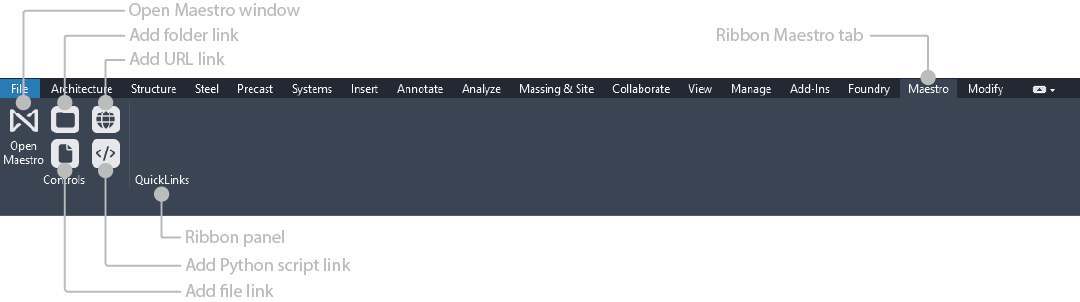
The Maestro ribbon tab contains two core elements:
- Controls Panel – Tools for opening Maestro and creating ribbon shortcuts.
- QuickLinks Panel – The default panel where newly created buttons are placed.
These panels let users personalize their Revit ribbon with minimal friction.
4.1.2 Controls Panel
Open Maestro Window
Opens the Maestro interface, the main workspace for writing scripts, managing deployments, configuring ribbon elements, and using Maestro AI.
Add Folder Link
Creates a ribbon button that opens a specified local or network folder.
Add File Link
Creates a button that opens a specific file (PDF, Excel, CAD reference, standards document, etc.).
Add URL Link
Creates a ribbon button that opens a website in the default browser.
Add Python Script Link
Creates a ribbon button that executes a Python script through Maestro without opening the Maestro window.
4.1.3 QuickLinks Panel
QuickLinks acts as the default destination for newly created buttons.
Maestro ensures all buttons belong to a valid panel; QuickLinks fills this role when no other panel is specified.
Buttons can later be reorganized using the Ribbon Manager.
4.1.4 Maestro Ribbon Tab Behavior
- The Maestro tab appears alongside all standard Revit tabs.
- Buttons created through Maestro are placed inside this tab by default.
- Enterprise deployments may override or supplement user-created buttons depending on tenant configuration.
4.1.5 Notes & Best Practices
- Keep the Controls panel intact to ensure users always have access to creation tools.
- Treat QuickLinks as a staging area; final organization should be done in the Ribbon Manager.
- If the Maestro tab appears empty or incomplete, verify deployment settings or user permissions.